What does the red warning on my site mean?
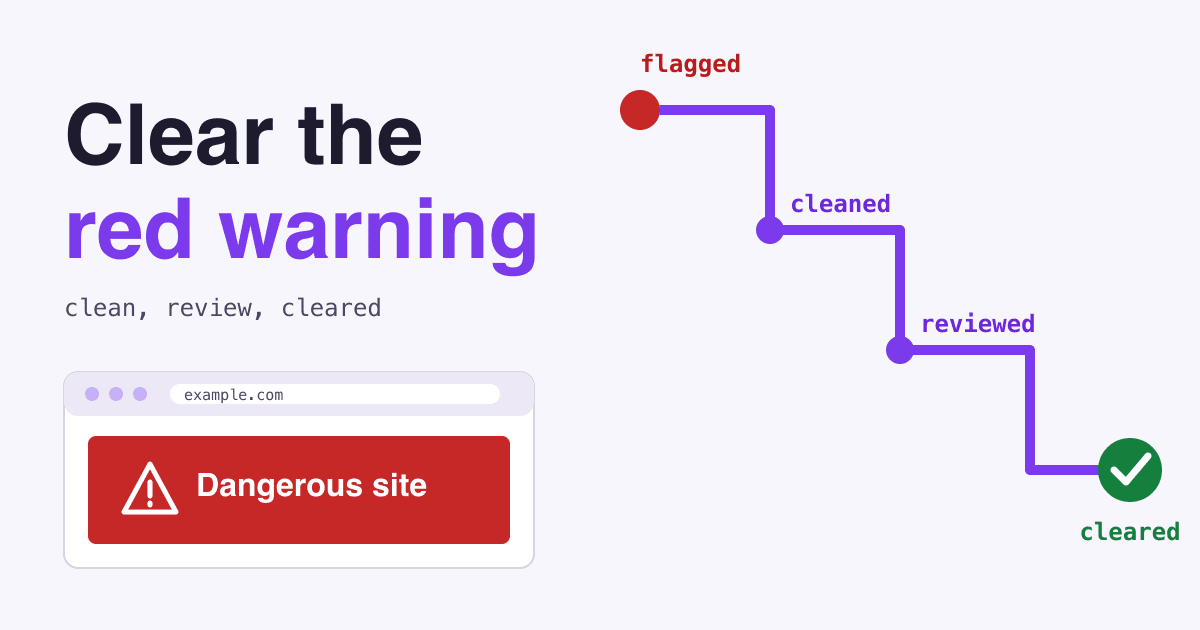
A red "Dangerous site" or "Deceptive site ahead" warning in front of your own website means Google Safe Browsing has listed the page or the whole site as unsafe, and it stays until Google sees the site is clean. In most cases that means you find the cause, fix it everywhere, and request a review in Search Console. Edge uses its own list (Sheet 2).
Google Safe Browsing is Google's list of websites that may put people at risk from malware, phishing and similar attacks. Google says it helps protect over five billion devices every day.
Once the site is clean and you send the request, Google's guide says a review takes about a day for phishing, a few days for malware and up to several weeks for a site hacked with spam, but plan for weeks rather than days (Sheet 8). After approval, Google says warnings go within 72 hours.
Why does each browser show different words?
Each browser writes its own warning, and three of the four big ones check Google's list. So "Deceptive site ahead" and "Dangerous site" can be the same problem. Chrome now heads the page "Dangerous site", while Firefox still uses the words in this article's title.
| Browser | What the visitor reads | Whose list |
|---|---|---|
| Chrome | "Dangerous site" | Google Safe Browsing |
| Firefox | "Deceptive site ahead" for phishing, "Visiting this website may harm your computer" for malware, and similar for the others | Google Safe Browsing |
| Safari | A warning from its Fraudulent Website Warning setting | Google Safe Browsing and Apple, plus Tencent for the China mainland and Hong Kong regions |
| Edge | A warning that the site is reported as unsafe | Microsoft Defender SmartScreen, a separate list |
A Google review only touches Google's list. Once the site is clean, if Edge still warns, report the site from the warning page: More information, then "Report that this site doesn't contain threats".
The warning can reach Google Search as well: affected pages can carry a warning label in the results. "Your connection is not private" is a different problem: that one is about your SSL certificate.
How many visitors does the warning stop?
Most of them. A 2013 field study logged over 25 million browser warnings, about 8.7 million of them for malware or phishing. On those two types, about 77% to 93% of warnings were not clicked through, depending on the browser and the warning.
Why did Google flag my site?
The Security issues report in Search Console names the reason, gives the date it was first detected and lists sample URLs. Those samples are not the full list. Sort the label into one of these four trays before you touch anything. Rarer labels, such as Unclear mobile billing or Uncommon downloads, have their own Learn more link in the report.
Someone broke in
Hacked: malware, code injection, content injection or URL injection
Files, pages or redirects you never added. Follow the whole treatment plan on Sheet 6.
Something you embed or link to
Deceptive embedded resources, harmful downloads, links to harmful downloads
Often an ad, a widget or a file. Ad networks rotate ads, so you may need to refresh a page a few times to see the bad one. Do that on a device with nothing sensitive on it, or use the URL Inspection tool (Sheet 5). Remove what you find. If you never added it, treat it as a break-in.
A page that looks like a trick
Deceptive pages, suspected deceptive pages
A page that poses as a trusted brand, device or browser, or pushes people to share a password or download software. Fix or remove it. If you did not build it, treat it as a break-in.
You can find nothing
Warning shows, pages look clean
Check for cloaking first (Sheet 5). If you just bought the site, fix what the report lists, then say so in your review request. If the pages are still clean and you believe the flag is wrong, report it (Sheet 7) or ask in the Google Search Central Help Community.
How do I see what Google saw?
Start in Search Console, not your browser. If you have never used it, add your site and verify ownership first. If the report shows no issues but visitors still see a warning, check which browser they use (Sheet 2) and ask in the Help Community. Google calls the report "the source of truth", because warnings depend on the browsing context and you may not be able to reproduce them. Hacked pages can also hide from you with cloaking: showing different content to different visitors, so a page that looks empty to you shows spam to Google (Google's example).
Do not open infected pages in your normal browser. Google warns that malware often spreads through browser weaknesses, so opening one may damage your computer.
Use these safer ways to look:
- URL Inspection tool in Search Console shows the page as Google sees it.
- A
site:example.comsearch lists what Google has indexed, including pages a hacker added. Add a spam word such assite:example.com pharmacyon larger sites. - cURL fetches the raw response and can pretend to arrive from Google, which is how many redirect hacks choose their targets.
- Google's site status page shows what Safe Browsing currently says about a URL, with no login needed.
curl -v --referer "https://www.google.com" \
  --user-agent "Mozilla/5.0 (Windows NT 10.0; Win64; x64)" \
  https://www.example.com/page.html
Compare that response with what you expect. Look for a Location header you did not set, scripts from unknown domains, and terms Google suggests searching for, such as eval, base64_decode and unescape. These words also appear in normal code, so a hit is a place to read, not proof of a hack.
How do I clean a hacked site?
This follows Google's recovery guide, shortened, with the infected copy moved up so nothing is lost. If your label was a single bad ad or page, remove it and go to Sheet 7. Partial fixes do not count: every listed issue has to be fixed on every page.
Tell your host, and decide who does the work
Google says a fix takes the ability to read code, use command-line server tools and possibly change server settings. If that is not you, hire someone. If customer data may have been taken, weigh your business, regulatory and legal duties now, before you delete anything.
Take the site offline
Stop the web server, or point DNS at a page on another server that returns a 503. Blocking crawlers in robots.txt is not enough, because people can still reach the harmful content. A maintenance page served by the hacked server is not enough either. If you are unsure how to do this, ask your host.
Lock the accounts
Delete accounts you do not recognize, after writing down their names. Change every password: FTP, database, admin and CMS.
Keep a copy marked "infected"
Back up the site as it is before you change it, so a mistake can be undone.
Find the way in
Check for a virus on an administrator's computer, weak or reused passwords, and out-of-date software. Keep looking after the first find, because there may be several.
Restore clean files
Use a backup made before the hack, then update everything, remove plugins you no longer use, and close the weakness you found in step 5. With no clean backup, clean a copy and move it to a fresh install, not just an upgrade, since upgrades can leave infected files behind.
Change the passwords again, and come back online
Check every damaged URL you found, not only Google's samples. You may need the site online briefly for this, so ask your host for an easy way to switch it. Then bring the site back and fetch your homepage and the hacked pages with cURL to confirm they are clean.
How do I ask Google to lift the warning?
Open the Security issues report and select Request Review. Before you do, Google asks you to confirm that you verified ownership in Search Console, cleaned the site, fixed the weakness and brought the site back online. Your pages must also be open to Googlebot: no robots.txt block and no noindex.
A good request explains the exact issue, describes the steps you took and documents the outcome. Here is that shape, filled in with a made-up example. The headings are ours, not fields in Google's form:
- The issue
- Content injection on 214 blog URLs, and a new admin account we did not create.
- What we did
- Removed the spam content, deleted the account, updated an out-of-date plugin that let the attacker in, and changed all passwords.
- The outcome
- All sample URLs now return clean pages. A site: search shows no spam pages. The plugin is on its current version.
- Our situation
- Only if true: we bought this site recently, the issue dates from before our purchase, and the site now follows Google's spam policies.
Send it once. Google says not to resubmit before you get a decision, and that asking while the problem remains can slow your next request or get you "marked as a repeat offender". Google confirms by email when it receives the request, and again when the review is done.
Flagged by mistake? For phishing or deceptive pages, use Google's report form. Google says it also triggers a review of cleaned phishing pages, so it is a second route for that one case. For malware, request a review in Search Console.
How long until the warning is gone?
After you send the request, from about a day to several weeks, depending on the problem, plus up to 72 hours for warnings to clear after approval. The clean-up comes first and takes as long as it takes.
- Warning on Listed within minutes of detection, and on average half an hour to appear
- Site cleaned As long as the work takes
- Review sent Email confirms it
- Review passed About a day to several weeks
- Warning off Within 72 hours
| Problem | Google's review time |
|---|---|
| Phishing | About a day |
| Malware | A few days |
| Hacked with spam | Up to several weeks, since it can involve manual investigation |
Those times come from web.dev. Google's pages do not fully agree: Search Console Help says a few days to a few weeks for any security review, and the Safe Browsing FAQ says a site with a clean malware rescan is typically off the list within 24 hours. Plan for weeks rather than days.
If the review fails, the warning stays and the report may show more sample URLs. Use them to look again, and bring in specialists if you are stuck.
How do I keep the warning from coming back?
Do these now, while the fix is fresh. They come from Google's clean-up guide and vulnerability checks, and the first from its Safe Browsing FAQ.
- Keep your site verified in Search Console, so Google can tell you first.
- Run regular, automated backups of files and database.
- Keep the CMS, plugins, templates and server software updated.
- Remove plugins and apps the site no longer uses.
- Learn how each third-party plugin handles security before you install it.
- Require strong passwords, each used in one place only.
- Keep every device that signs in to the site updated and clean.
Common questions about the warning
Can visitors still get to my site?
Yes, but it takes a deliberate click. In Chrome it is Details, then Visit this unsafe site, and Google does not recommend it. Do not tell customers to do this while the site is flagged.
Will taking my site offline hurt my rankings?
Google says it is unlikely that taking a site offline for a while during recovery will affect future ranking.
Is this a manual action?
No. The Manual Actions report covers attempts to manipulate Search, usually with no sign to the visitor. The Security issues report covers harm to visitors, and that is the one behind the red page.
Why can't I see the warning myself?
Safe Browsing warns based on browsing context, so you may not see what visitors see. Trust the report, not your own screen.
How often does Google check flagged sites?
Google says it periodically checks listed sites and scans its web index daily. It gives no schedule for rechecks, so request a review instead of waiting.
Where do these facts come from?
- Security issues report, Search Console Help
- Request a review, web.dev
- Build a support team, web.dev
- Quarantine your site, web.dev
- Clean and maintain your site, web.dev
- Identify the vulnerability, web.dev
- How do I know if my site was hacked?, web.dev
- FAQ for hacked sites, web.dev
- Google Safe Browsing
- Safe Browsing FAQs, Google Transparency Report Help
- Manage warnings about unsafe sites, Google Chrome Help
- Interstitial strings, Chromium source
- Blocked site strings and default settings, Firefox source
- Safari and Privacy, Apple
- SmartScreen in Edge and its help page, Microsoft
- Akhawe and Porter Felt, Alice in Warningland, USENIX Security 2013
Checked on 2026-10-30. Browser wording can change between versions.