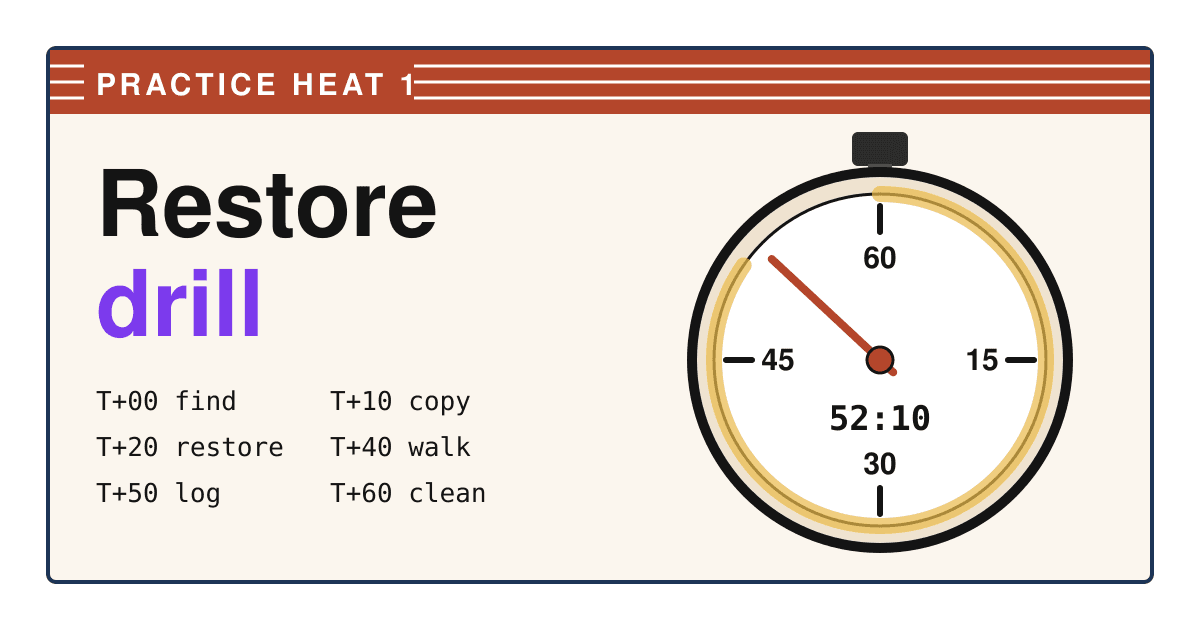
At minute zero of this drill your website is working, and by minute sixty you will know whether you could bring it back if it were not.
Short answer: take your newest backup and one that is at least seven days old, copy them to storage you control, restore one to a spare address that is not your live site, and click through the copy against a short list. Time each stage and write down the date of the newest item in the backup: that date is how much work you would lose today. On a hosted builder such as Shopify, Squarespace or Wix the drill is shorter, because their exports and version histories bring back only part of a site, and the drill is how you find out which part.
What each platform's backup actually brings back
"We have backups" means something different on every platform. Read your row before the drill, so a gap you find later is not a surprise. Each cell says what the platform's own backup or export holds, from its help pages.
| Platform and method | Pages and design | Posts and products | Images | Settings and apps |
|---|---|---|---|---|
| WordPress, files plus database | Comes back Theme and plugins are in the files. | Comes back In the database, so only with the database export. | Comes back In the uploads folder of the files. | Comes back Settings in the database, plugins in the files. |
| Shopify, CSV exports plus theme | Part of it The theme downloads; pages and blog posts are copied by hand. | Part of it Products and customers import; orders export but cannot be imported in the admin. | Part of it Product media needs preparing for the move. | Not in it Taxes, shipping, checkout and payments are set again; apps reinstalled. |
| Squarespace, .xml export | Part of it Layout pages only; style settings and custom CSS do not export. | Part of it One blog page; store pages and product blocks do not export. | Part of it Image blocks export as links that can break after you cancel. | Not in it Not in the file. |
| Wix, site history | Comes back Any saved or published version can be restored. | Not in it Wix Blog, Stores and Bookings content does not revert. | Not in it Media galleries always show the latest version. | Part of it Page SEO reverts; site-wide SEO settings do not. |
Two more limits change the drill. A Squarespace export cannot be imported into another Squarespace site, only into WordPress, and a Wix site must run on Wix servers, so neither has a spare copy you can stand up somewhere else. For both, the drill checks what the export or history holds, and you keep your own copies of text and images for the rest. Wix CMS collections are not reverted by site history either; Wix points to CMS backups for those.
The drill, stage by stage, with a stopwatch running
Book an hour when nothing is being launched, and start a stopwatch. The splits below are targets for a small site. Going over one is not a failure; not being able to finish a stage is.
-
T+00
1 Find two backups
The newest one, and one from at least seven days ago. CISA's backup guidance for state and local governments says to make sure you can roll data back at least seven days. The older copy matters for a website too: a hack or a bad update is often found days after it happened, and by then the newest backups hold the damage too.
Pass You found both without asking anyone for a password.
-
T+10
2 Copy them to storage you control
Download both to your own computer or cloud drive and open them. For WordPress that means two parts: the files and a database export, usually a .sql or .sql.gz file. The WordPress handbook is plain about it: backing up the files does not back up the database, and you need both to restore a typical site. On Shopify, export the CSV files and download the theme; on Squarespace, download the .xml file.
Pass Every file opens, and none is a few kilobytes where you expected megabytes.
-
T+20
3 Restore to a spare address
Never over the live site. Use your host's staging feature, a subdomain such as test.example.com, or a copy on your own computer. For WordPress, the handbook's order is files first, then import the database, then fix the database login in wp-config.php if it changed. On Shopify, import the product and customer files into a test store. On Squarespace, open the .xml file and search it for your newest post and your most important page. On Wix, open site history and find a version from at least a week ago, without restoring it on the live site.
Pass The copy loads in a browser, or the file holds the pages you searched for.
-
T+40
4 Walk the copy
- The home page and your three most visited pages look right.
- The newest post, product or page is there. Write down its date.
- Images load from the copy, not from the live site.
- You can log in as an admin on the copy.
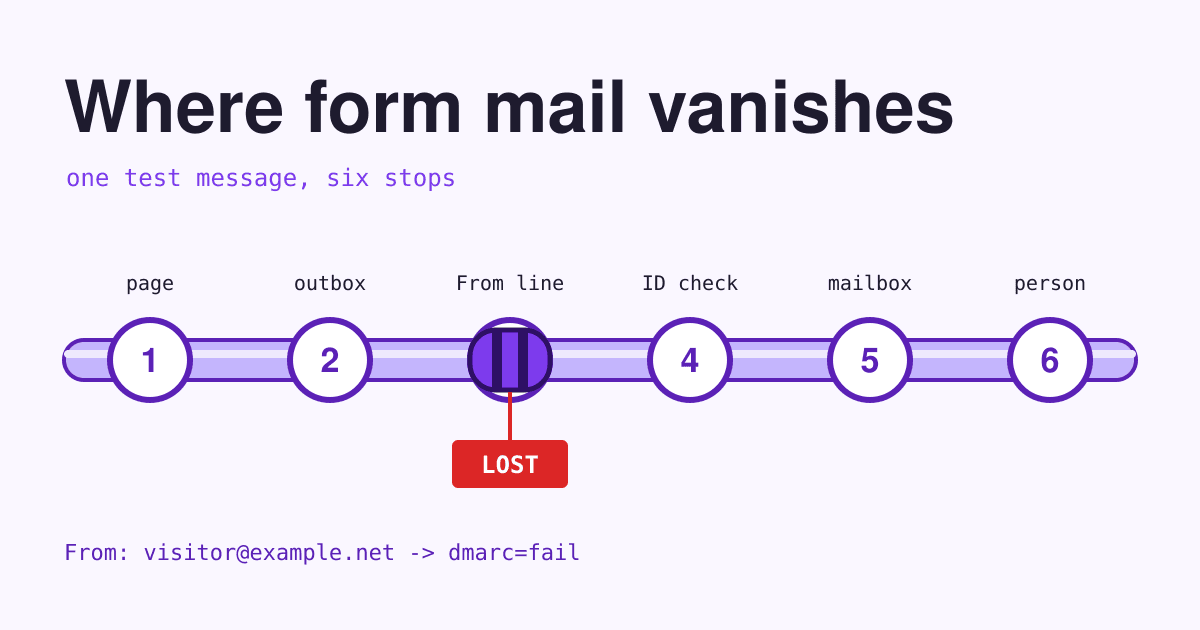
- A form on the copy submits, and you can see where the message went.
- Anything the coverage grid marked "Not in it" is listed somewhere you can rebuild it from.
Pass Every line checked, or each gap written down with what would replace it.
-
T+50
5 Fill in the drill log
Write the times and findings on the log sheet below while they are fresh. The newest-item date matters most: if it is three weeks old, your backups run less often than you think.
Pass The log is filled in and saved outside the website.
-
T+60
6 Clean up the copy
Delete the spare copy, or put it behind a password. An open copy of your site on a test address can be found and indexed by search engines as a duplicate of the real one, and it is one more login to keep safe.
Pass The test address shows nothing to a visitor who is not logged in.
A drill log to copy
Keep the filled-in log where you can read it without the website or the hosting account: a printout or a document on your own drive. CISA's advice is to know how to reach critical files even without an internet connection, and a log saved only inside the site you lost is no help.
- Drill date6 Nov 2026
- Backups usedNightly of 5 Nov; weekly of 29 Oct
- Newest item in the backupBlog post of 4 Nov
- Time to a working copy38 min
- Missing or broken on the copyContact form sent nowhere; 2 images from a plugin folder
- Who did whatOwner ran it; host support restored the database
- Next drillFeb 2027, and after any move or redesign
The values in grey are an example. Replace them with yours.
What no site backup holds
A restored site still needs these to reach visitors. Check that each one is in your name and written down, because a backup of the site brings back none of them.
- The domain, its registrar login and the renewal date.
- The DNS records: write down or export every record, so a new host can be pointed at in minutes.
- Email on your domain, which usually lives with a separate mail provider.
- Form messages kept by a separate form service rather than by the site.
- Payment and shipping accounts, which a Shopify restore sets up again by hand.
- Analytics and Search Console access, which stay with the account, not the files.
Questions about testing a website backup
How often should I run the drill?
Once a quarter, and after any change of host, theme or platform. Backups themselves should run more often: the WordPress handbook suggests weekly for a small site and daily for a busy one, and always before an update.
My host makes backups. Is that enough?
It is one copy, held by the same company that runs the site. The WordPress handbook notes that asking a host for a copy from its server backups takes time, and suggests keeping at least three to five recent backups in different places: one at the host, one in cloud storage, one on your own computer.
What if the restore fails during the drill?
Then the drill did its job, on a day when the live site is still up. Ask your host or developer to restore it with you watching, write down every step they take, and run the drill again next month.
Can the drill break my live site?
Not if you restore only to a spare address. The risk is restoring by mistake over the live site, so check the address in the browser before the import step, and never use the live site's database for the copy.
Sources
- WordPress Advanced Administration Handbook: Backups, last modified 2026-10-28, read 2026-11-06.
- Shopify Help Center: Backups and duplication, read 2026-11-06.
- Squarespace Help Center: Export your site content, read 2026-11-06.
- Wix Help Center: Limitations of restoring a saved version of your site and Exporting or embedding your Wix site elsewhere, read 2026-11-06.
- CISA: Back Up Government Data, read 2026-11-06.