- Site
- A made-up dog-grooming salon on WordPress: a booking page, eight plugins, about 40 bookings a week
- Change
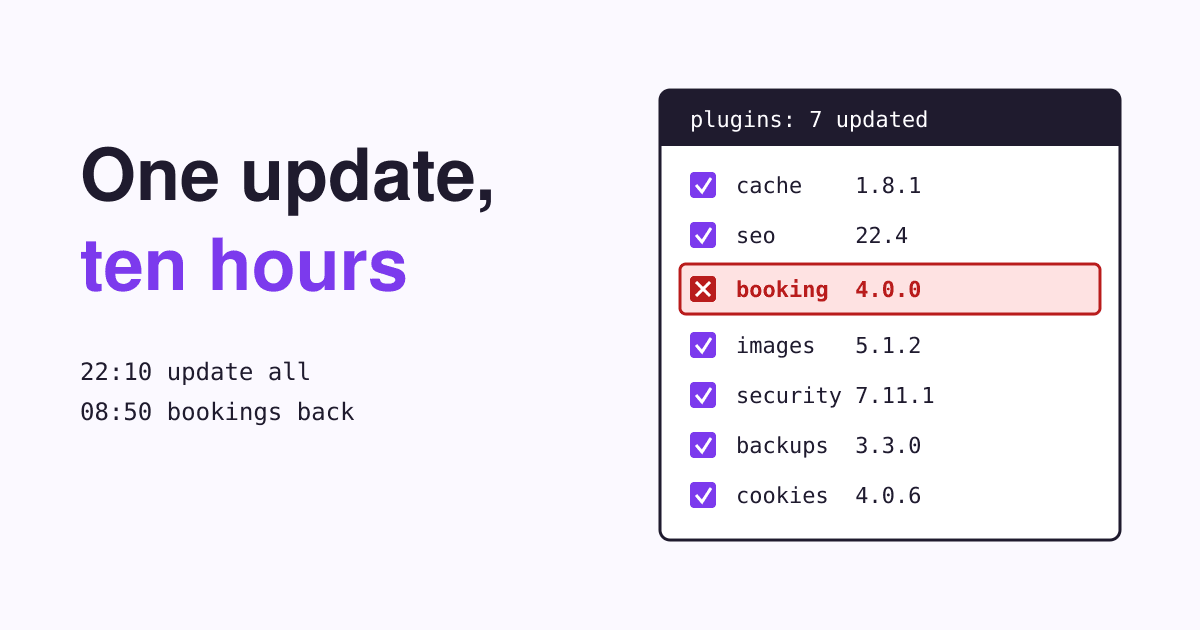
- "Update all" on seven plugins, clicked from a phone at 22:10 on a Friday
- Impact
- Every page answered with a critical error for 9 hours 55 minutes; online booking was back after 10 hours 40 minutes, on the busiest morning of the week
- Root causes
- A new booking-plugin version that clashed with an old form plugin; the warning email went to an address nobody read
- Status
- Resolved Saturday 08:50; the new version went live on Tuesday after a test on a copy of the site
Nothing on a WordPress site breaks as fast as an update, and nothing gets it back as fast as knowing which folder to rename.
This report follows one broken update from the click to the first booking after it. The salon is made up and its times are illustrative, but each step uses what WordPress itself provides for the case: the recovery email, the debug log, deactivation by folder, and the previous versions kept in the plugin directory. Read it once now, while the site works.
When an update breaks the site, switch off the plugin that changed: through the recovery link WordPress emails to the administration address, or, if that email never comes, by renaming the plugin's folder in wp-content/plugins with your host's file manager. The site comes back without it. Then turn on the debug log to see which plugins clash, put the previous version back from the plugin directory, and test the new version on a copy of the site before you try it again.
Event log: from "Update all" to the first booking
Each line is when the thing happened, not when anyone noticed it. Nine of the ten and a half hours passed before anyone knew.
- Fri 22:10 Change The owner sees "7 updates" on the Plugins screen and taps "Update all" on a phone. The booking plugin jumps a major version, from 3.9 to 4.0.
- Fri 22:11 Outage Every page, the dashboard included, shows "There has been a critical error on this website. Please check your site admin email inbox for instructions."
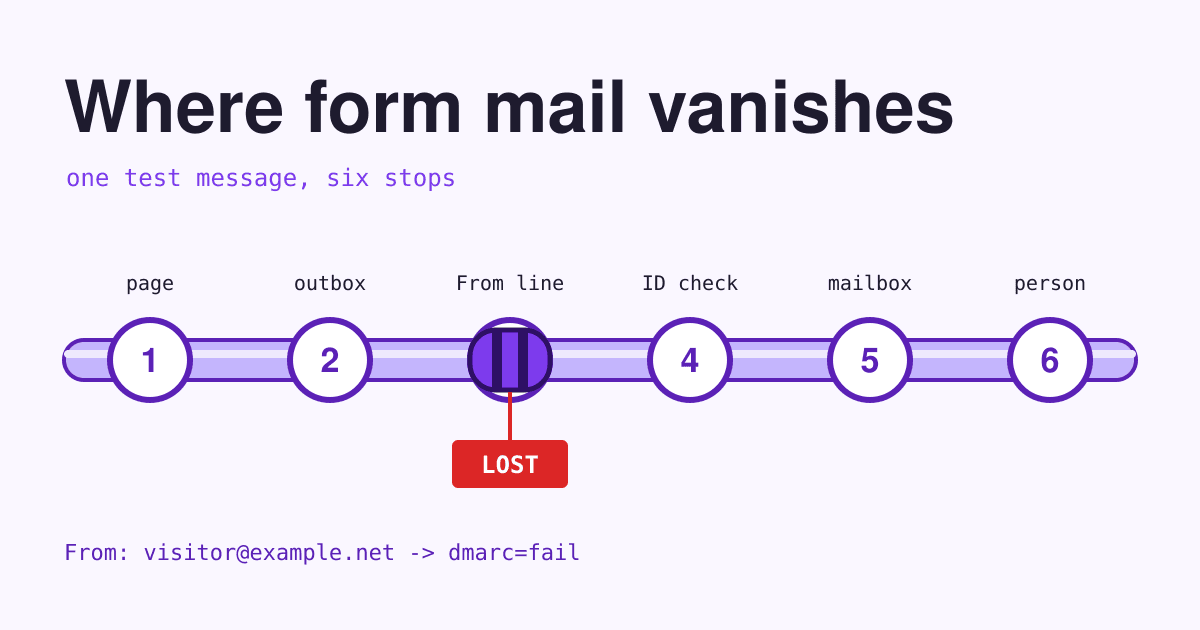
- Fri 22:11 Missed WordPress emails the administration address with a recovery link. That address is still the web designer's, from the build two years ago.
- Fri 22:12 Unseen The phone shows "Plugins updated" and the owner goes to bed. The admin screen did not reload, so nothing looked wrong.
- Sat 07:30 Noticed A customer writes on social media that the booking page shows an error. Saturday is the busiest morning of the week.
- Sat 07:45 Finding 3 The login page shows the same error. The recovery email is found by phoning the designer, who no longer works on the site.
-
Sat 08:05
Finding 1
In the host's file manager the owner renames
wp-content/plugins/booking-plugintobooking-plugin.off. The site loads at once, without its booking form. -
Sat 08:20
Finding 2
Debug logging on. The first fatal line in
debug.lognames two folders: the new booking plugin and an old form plugin that loads an older copy of the same code library. - Sat 08:40 Rollback Version 3.9 of the booking plugin, downloaded from the plugin directory's previous versions, is uploaded and switched on.
- Sat 08:50 Restored A test booking goes through and its confirmation email arrives. Debug logging off.
- Tue 10:00 Closed On a copy of the site, the form plugin is updated first, then the booking plugin to 4.0. No error. The same order goes live. The administration email now goes to the owner.
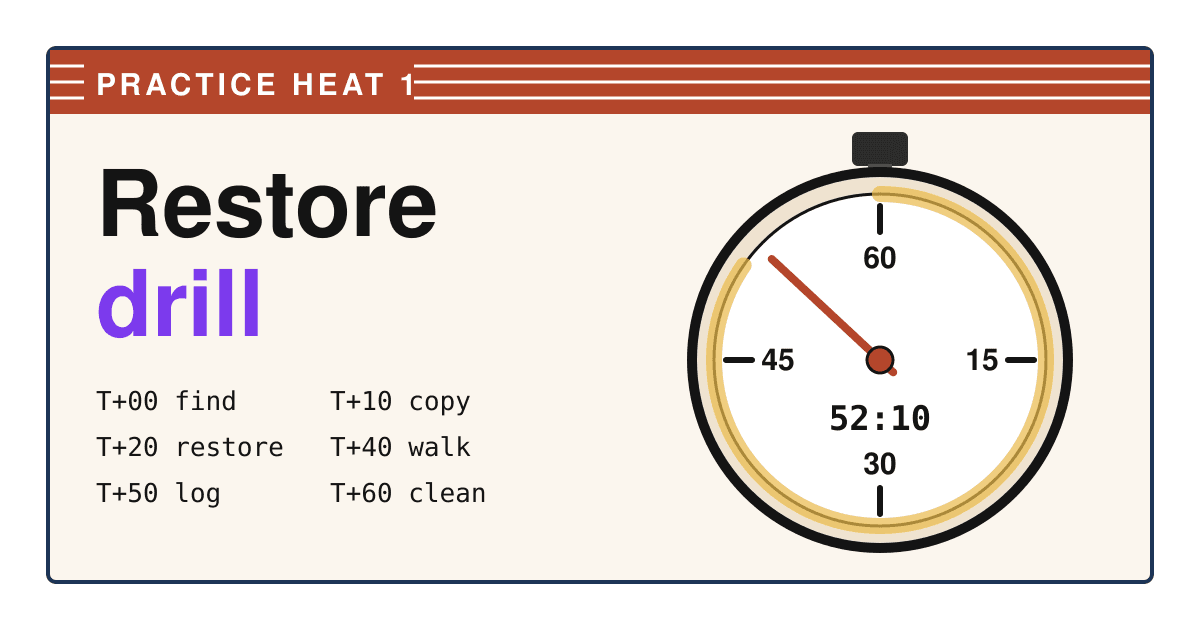
The first hour: six moves that bring a site back
In this order. Each one has a fallback for when it does not work.
-
T+0
Read the exact message
Open the site in a private window and copy what it says. "There has been a critical error" is a fatal PHP error. "Briefly unavailable for scheduled maintenance" is an update that stopped half way. A blank white page is usually a fatal error with error messages hidden.
If the site loads in a private window but not for you, clear your cache before going on. -
T+5
Look for the recovery email
WordPress emails the administration address when a plugin or theme causes a fatal error, with a secret link to recovery mode. Recovery mode pauses the broken plugin for you alone, so you can log in and deactivate it (WordPress 5.2 release note).
No email after ten minutes? Check spam, then go to the next move rather than wait. -
T+10
Switch the plugin off by its folder
In your host's file manager or over FTP, open
Still broken with all plugins off? The theme or WordPress itself changed: ask your host to restore last night's backup.wp-content/pluginsand rename the folder of the plugin that just updated, for example tobooking-plugin.off. WordPress cannot find it and treats it as inactive. If you cannot tell which plugin it was, rename the wholepluginsfolder toplugins.holdto switch every plugin off, then rename it back and switch them on one by one (WordPress troubleshooting FAQ). -
T+20
Turn on the debug log
Add the debug lines shown further down to
No debug.log appears? Your host may write PHP errors to its own error log in the control panel.wp-config.php, reload the broken page once, and read the end ofwp-content/debug.log. The first line starting "PHP Fatal error" names the file, and so the plugin folders, involved (WordPress, Debugging in WordPress). -
T+30
Put the previous version back
Every plugin in the WordPress directory keeps its old versions on its Advanced View page under "Previous Versions" (example). Download the version you had, upload it under Plugins, Add New, and let it replace the current one. With WP-CLI it is one command.
A paid plugin not in the directory? Its vendor's account page usually offers older versions; if not, restore the plugin folder from a backup. -
T+45
Clean up and prove it
Delete a leftover
If the test fails, the old version is not fully back: compare the plugin version on the Plugins screen with the one you uploaded..maintenancefile in the site's main folder if the maintenance message is still showing. Switch debug logging off. Then do the thing the site exists for: make a test booking, send the contact form, place an order.
Findings: what broke, where it shows, and how to test it
In the order this salon found them. The first two took the site down; the last three made the outage last ten hours instead of ten minutes.
Seven updates in one click
Cost: no way to tell which plugin broke the site- Where it shows
- One critical error after a bulk update, with seven suspects.
- Test
- Compare the version numbers on the Plugins screen with your last backup or the update email.
- Fix
- Update one plugin at a time, starting with the ones that matter least, and load the site between each. Read the changelog before any jump in the first number of the version, such as 3.9 to 4.0.
Two plugins carrying the same code
Cost: the outage itself- Where it shows
- A "PHP Fatal error" line in
wp-content/debug.lognaming files in two different plugin folders. - Test
- Turn on
WP_DEBUG_LOG, reload the page once, read the first fatal line. - Fix
- WordPress lists conflicts between plugins as one of the most common causes of a critical error (WordPress, Common errors). Update the older plugin first, or ask both developers which versions work together, and test the pair on a copy of the site.
The warning went to the designer
Cost: nine hours- Where it shows
- No recovery email in the owner's inbox, while the error page asks you to check it.
- Test
- Open Settings, General and read the Administration Email Address.
- Fix
- Put an address you read there. WordPress sends recovery-mode and fatal-error notices, update notices and other site alerts to it, and it is separate from the email of your own user account (WordPress, Settings General screen).
A late-night update with nobody watching
Cost: the hours between 22:12 and 07:30- Where it shows
- The admin screen said the plugins were updated and never reloaded.
- Test
- After any update, open the home page and your most important page in a private window.
- Fix
- Update on a weekday morning when you can watch the site for an hour. Add an outside uptime check that loads the booking page and looks for a word on it, so an error page raises an alarm at night.
No copy of the site to test on
Cost: three days before the new version could be tried safely- Where it shows
- The only place to try version 4.0 was the live site.
- Test
- Ask your host whether your plan includes a staging copy; many shared plans do.
- Fix
- Test major plugin updates on a copy first. Keep a recent backup either way: the WordPress guide to auto-updates asks you to be able to roll back before you switch them on.
The update ledger: what "Update all" changed
The salon wrote this on Saturday morning from the update email and the Plugins screen. Keep one for any update you run in bulk: it turns seven suspects into one.
| Plugin | Before | After | Result |
|---|---|---|---|
| Booking | 3.9.2 | 4.0.0 | Fatal error with the form plugin; rolled back to 3.9.2 |
| Contact form | 2.4.1 | 2.4.1 | Not updated: auto-updates off and no update offered for months; it loaded the old copy of the shared library |
| Caching | 1.8.0 | 1.8.1 | Fine |
| SEO | 22.3 | 22.4 | Fine |
| Image compression | 5.1.0 | 5.1.2 | Fine |
| Security | 7.11.0 | 7.11.1 | Fine |
| Backups | 3.2.0 | 3.3.0 | Fine |
| Cookie banner | 4.0.5 | 4.0.6 | Fine |
The plugin that broke was not the one that changed most, but the one that did not change at all. A plugin that has not been updated in a long time is the first suspect in any conflict.
The lines and commands to keep at hand
Debug logging, added to wp-config.php above the line that says "That's all, stop editing!". It writes errors to wp-content/debug.log and keeps them off the page your visitors see:
define( 'WP_DEBUG', true );
define( 'WP_DEBUG_LOG', true );
define( 'WP_DEBUG_DISPLAY', false );
@ini_set( 'display_errors', 0 );
Set WP_DEBUG back to false when you are done, and delete debug.log: it can hold file paths you would rather not publish.
If your host offers WP-CLI over SSH, the same rollback takes two commands. The first switches the plugin off; the second puts back an exact version from the directory, replacing what is there (wp plugin deactivate, wp plugin install):
wp plugin deactivate booking-plugin
wp plugin install booking-plugin --version=3.9.2 --force --activate
Without SSH, the file manager rename does the first job and the upload of the old zip does the second.
Action items before your next update
Written as the salon wishes it had: each with when, what, and what proves it is done.
- TodayFix the administration email under Settings, General.Done when a test email from the site reaches you.
- TodayFind your file manager in the hosting panel and open
wp-content/pluginsonce.Done when you could rename a folder at 07:30 on a Saturday without help. - This weekCheck the backup: its date and that it holds the files as well as the database.Done when you know the last backup's date without looking it up.
- This weekList the plugins nobody has updated in a year, and replace or remove them.Done when every plugin left has had an update in the last year.
- Every updateOne plugin at a time, on a weekday morning, with the ledger open.Done when the home page and booking page load after each one.
- Major versionsTest on a copy first, then repeat the same order on the live site.Done when a test booking goes through on the copy.
- OngoingDecide on auto-updates plugin by plugin, and keep an outside check on the page that earns money.Done when an error page at night sends you an alert.
Questions owners ask after a broken update
Should I turn on auto-updates for plugins?
For small plugins from active developers, usually yes: you get security fixes the day they ship. Since WordPress 6.6, a plugin auto-update that fails is rolled back automatically (WordPress 6.6 release post), and WordPress emails the administration address after each auto-update (WordPress, Plugins and themes auto-updates). For the plugin that takes your bookings or payments, many owners prefer to update by hand after reading the changelog.
Will renaming the plugin folder delete my bookings or settings?
No. The settings and records live in the database, not in the folder. Renaming only stops WordPress from loading the code; when the folder or an older version comes back, the plugin finds its data again. Deleting the plugin from the Plugins screen is different: some plugins remove their data when deleted.
Is it safe to run an older plugin version?
For a few days, while you find a fix, it is the normal way out. The plugin directory warns that previous versions may not be secure or stable, so do not stay there: if the newer version fixed a security hole, get the conflict solved and update within days.
The site says "Briefly unavailable for scheduled maintenance" and stays that way. What now?
WordPress puts a file named .maintenance in the site's main folder during an update. If the update stops half way, the file stays, and so does the message. Delete it with the file manager (it is hidden, so turn on "show hidden files"), then check that the plugin that was updating still works (WordPress troubleshooting FAQ).
Who do I call if none of this works?
Your host first: they can read the server's error log and restore a backup of files and database. Then the plugin's developer, with the fatal error line from debug.log, which tells them in one message what took a day to find.
Sources
- WordPress Advanced Administration, Common WordPress errors (critical error message)
- Make WordPress Core, Fatal error recovery mode in WordPress 5.2
- WordPress documentation, FAQ Troubleshooting (deactivating plugins by folder, the .maintenance file)
- WordPress Advanced Administration, Debugging in WordPress
- WordPress documentation, Settings General screen (Administration Email Address)
- WordPress documentation, Plugins and themes auto-updates and WordPress 6.6 release post
- WordPress documentation, Manage plugins
- WordPress plugin directory, Advanced View with previous versions (example plugin)
- WP-CLI, wp plugin deactivate and wp plugin install